
Filtering Reports
Most reports will display a filter prior to previewing or printing. This allows you to filter data on a number of criteria.
Some filters are optional, others are mandatory. Fill in any relevant filter criteria, then click Executeto run the report.
The most frequently used filters include:
- Payrun dates
- Employee
- Payroll framework elements
- Leave Projection
- Task Dates.
Details Tab
Filtering By Payrun Dates:
Any payroll-related reports can be filtered by payrun date.
The range selected will always be printed on the last page of the report. There are three different types:
- Historical Reports:All reports in the historical folders can be filtered by a range of dates, e.g. from week 34 to week 38, or all payruns within the month of January.
- Payrun Reports:All reports in the payrun folders can be filtered by one payrun only. These reports are usually run from the Payrun Wizard but can be reprinted here at any time.
- Pay Advices:This section is used to reprint payslips from any payrun which has not been closed in the payrun wizard. Only one payrun can be selected at a time.
There are three methods of selecting dates:
- Run Number: This is the preferred method, as it allows you to select the payrun(s) from a list which incorporates FinYr:WeekNo and period dates.
It is the most fail safe method of selecting a range of payruns to include in your reports. Click the Run Number Box to display a list of available payruns.
Hold the Ctrl or Shift keys while clicking to select multiple payruns, or use sorting and grouping to make your selections easier. - Fin Year:Week No: Enter the minimum and maximum FinYr:WeekNo on which this report is to be based.
All payruns on or between the selected week numbers will be included. - Period End Date: Enter the minimum and maximum period end dates which this report is to be based.
All payruns on or between the selected period end dates will be included.
Filtering by Employee:There are three methods of selecting employees:
Using an F4 search - preferred method
- On the report filter press F4 to open a local search in the left hand pane
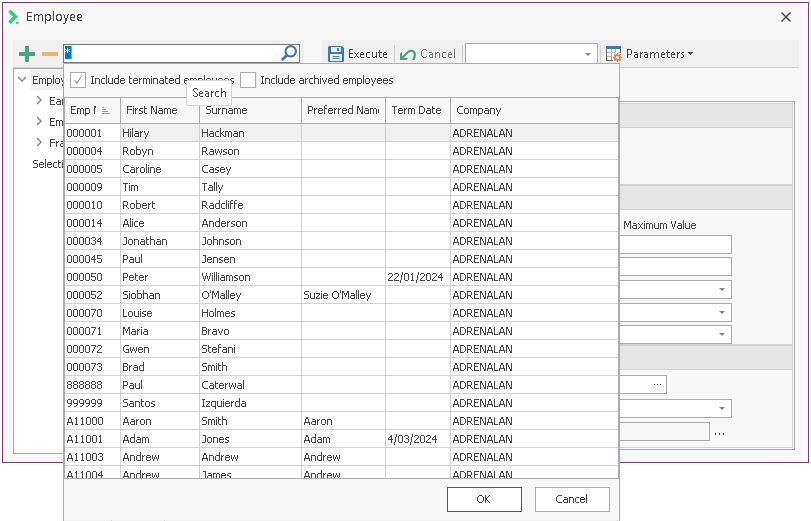
- Search for the required employee.
- If only one result is found, the employee is automatically added.
If there is more than one result, double click the employee to add them. - Any added employees can be viewed by clicking on Selectionsin the left panel.
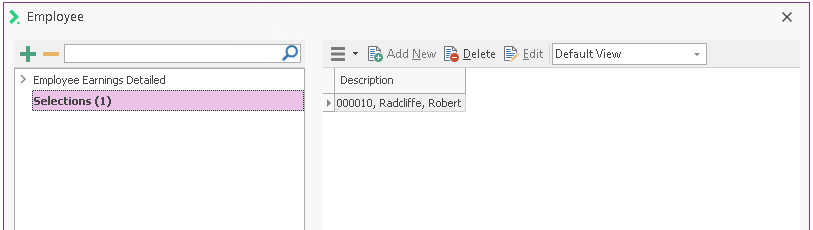
- Click on the top node in the left panel to continue with the report.
This is usually the name of the report you are running. e.g.: Employee Earnings Detailed.
Searching for employees:
If only one name is found, by default that name is added to Selections automatically. If you would prefer that it is not added automatically, you can switch the option off. In the Navigator go to the Tools and Settings > System Settings > Search or in the Ribbon Bar got to Settings > Search and deselect the Local Search (F4) - Autoselect option.
Using the Employee Number
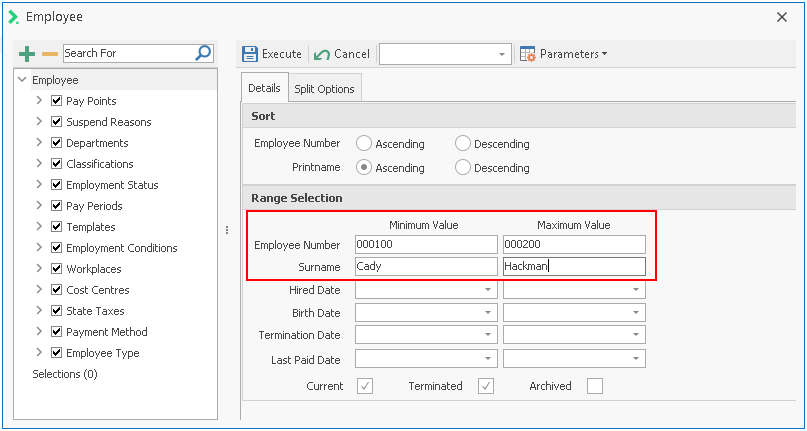
- In the right hand pane enter a range of employee numbers to include in the report. You must enter the exact number in full, including any leading zeroes.
This method works best if you are reporting on all employees within a given number range, for example 000100 to 000200. - You may also enter one number in both minimum and maximum to limit the report to one employee.
Using the Surname
- In the right hand pane enter a range of employee names to include in the report. You must enter the exact name in full, case sensitive.
This method works best if you are reporting on all employees within a given alphabetical range, e.g. all surnames from Landen-Tally. - You may also enter one name in both minimum and maximum to limit the report to one employee.
Filtering by Payroll Framework Elements
Many report filters allow selection of specific elements of the payroll framework such as costings, employee settings or pay items.
The elements available will depend on the report being run.
Selections are made in the left-hand pane of the report filter.
Selections can be grouped into three broad categories:
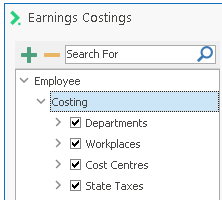
Using Costings
These selections are available in most Costing Reports, and are used to filter on Cost Centres, Departments, Workplaces or States.
This allows you to filter your reports by any costing group, e.g. to report on only one department, simply de-select the departments which are not required.
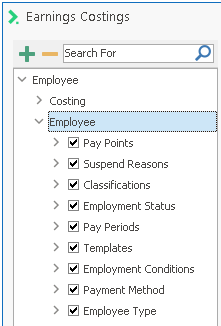
Using Employee
This selection appears on most reports which relate to employees, for example all historical and payrun reports, reports in the employee based folder and others.
It allows you to filter on employee settings such as employment condition, employment status, pay periods, super funds and so on.
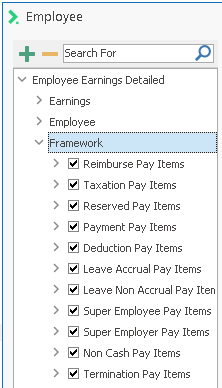
Using Framework (pay items)
This section allows you to filter reports on pay items, i.e. to exclude all deductions, or report on leave payments only.
It is available on costing reports, and any reports which relate specifically to pay items, for example Historical > Employee Based > Pay Item Totals.
Pay items are grouped by type, allowing you to quickly de-select an entire group, or individual pay items if required. Simply select the boxes as required.
Filtering by Leave Projection:
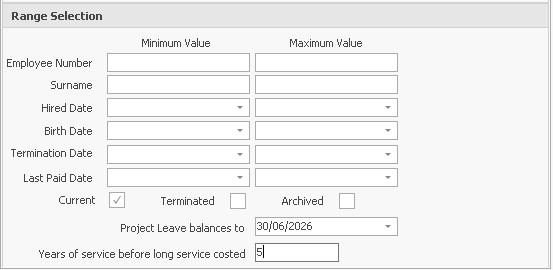
In System Reports > Leave Reports the Projected Leave Liability reports, $ Values or Hours Only, have a specific filter which allows you to forward-project leave balances/liabilities.
It also allows you to exclude the long service leave liability of more recent employees if required.
Note: If you want to exclude people via Suspend Reason, with a specific reason, you must untick that reason only. If you want to exclude everybody with any suspend reason, you still must have one Suspend Reason ticked in the criteria list. Therefore, tick the one that you know is not in use. If necessary, you could create a new Suspend Reason in Validation Tables (such as 'Report Use Only' or 'TBA') and then keep this ticked in the criteria list.
Project Leave balances to:
Enter the date to which you wish to project balances. The system calculates the number of pay periods between this date and the last payrun period end date.
It then projects leave balances according to the number of pay periods which would fall between those dates, using the employee's default pay settings.
It is important to note that balances are projected in blocks, so if the date you enter is not a period end date, the system will project data to the nearest period end date.
Note that when viewing this in the Employee Details, Leave Balances screen, you can only project to a maximum period of 12 months in advance.
However this restriction does not apply to printed reports.
It is not possible to project backwards – this will report incorrectly.
Years of service before long service costed: This setting allows you to exclude the liability for long service leave for newer employees.
For example, enter 5 to display long service liability only for those employees who have been with the company for more than 5 years.
Annual leave balances are shown as normal for the newer employees.
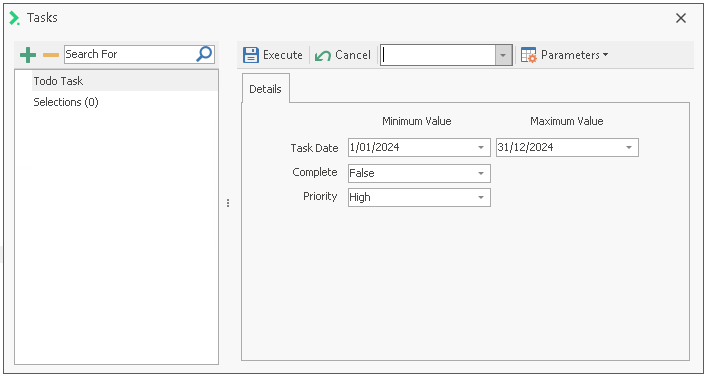
Filtering by Task Dates:
- The Employee Task report (Report Explorer > System reports > Employee Reports) can be filtered by Task Date/Complete and/or Priority.
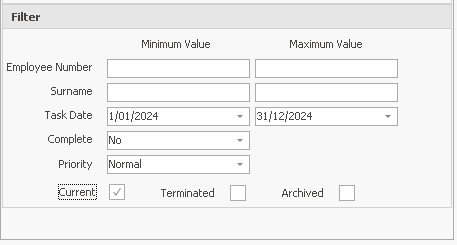
- The To Do Items Listing report (Report Explorer > System Reports > Framework Listings) can be filtered by Task Date/Complete and/or Priority.
Creating and Saving Parameter Sets
You may save your selected report parameters as a "Parameter Set".
This means that the next time you run the same report, you can select the parameter set and reuse it.
To set up and save a filter parameter:
- Enter all of the required filter parameters.
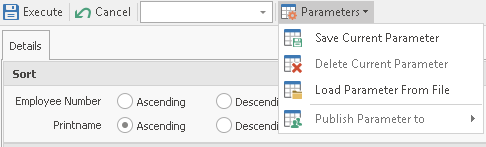
- Click on the Parameters button as shown below.
A drop-down list will become available, giving you several options: - Click on the Save Current Parameter button.
The Save Enquiry Filter Param Set screen will open.
It will default to New Param Set. - To save the parameter set as a new set, enter a name for the set.
- To save this parameter set over an existing set and replace the existing set, select Over existing Param Set, select the Param Set you want to overwrite.
- To save the parameter set to file, select Save to File and then browse to the location in which you wish to save the file. The file will be saved as a .wrp or Report Parameter file.
- Once you have made your selection, click Ok and the parameter set will be saved.
It will also then be available in the View selector to use at a later date.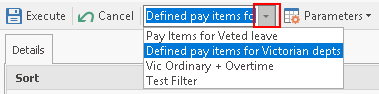
Split Options gives details on a Ready Pay activated function which enables you to split PDF reports.